How to Screen Mirror an iPhone to an LG TV, Wirelessly or With a Cable
Published How we research
To mirror an iPhone to an LG TV, put both on the same Wi-Fi network, open Control Center on the iPhone, tap Screen Mirroring, pick your TV and enter the code that appears on the screen. This uses AirPlay, which is built into most LG smart TVs from 2019 onward. If your TV is older or the connection keeps failing, a wired adapter or a cheap streaming device gives the same result.
Products from this article
The highest-scoring picks from the buying guides this article links to. Scores are our editorial assessment, not customer ratings.
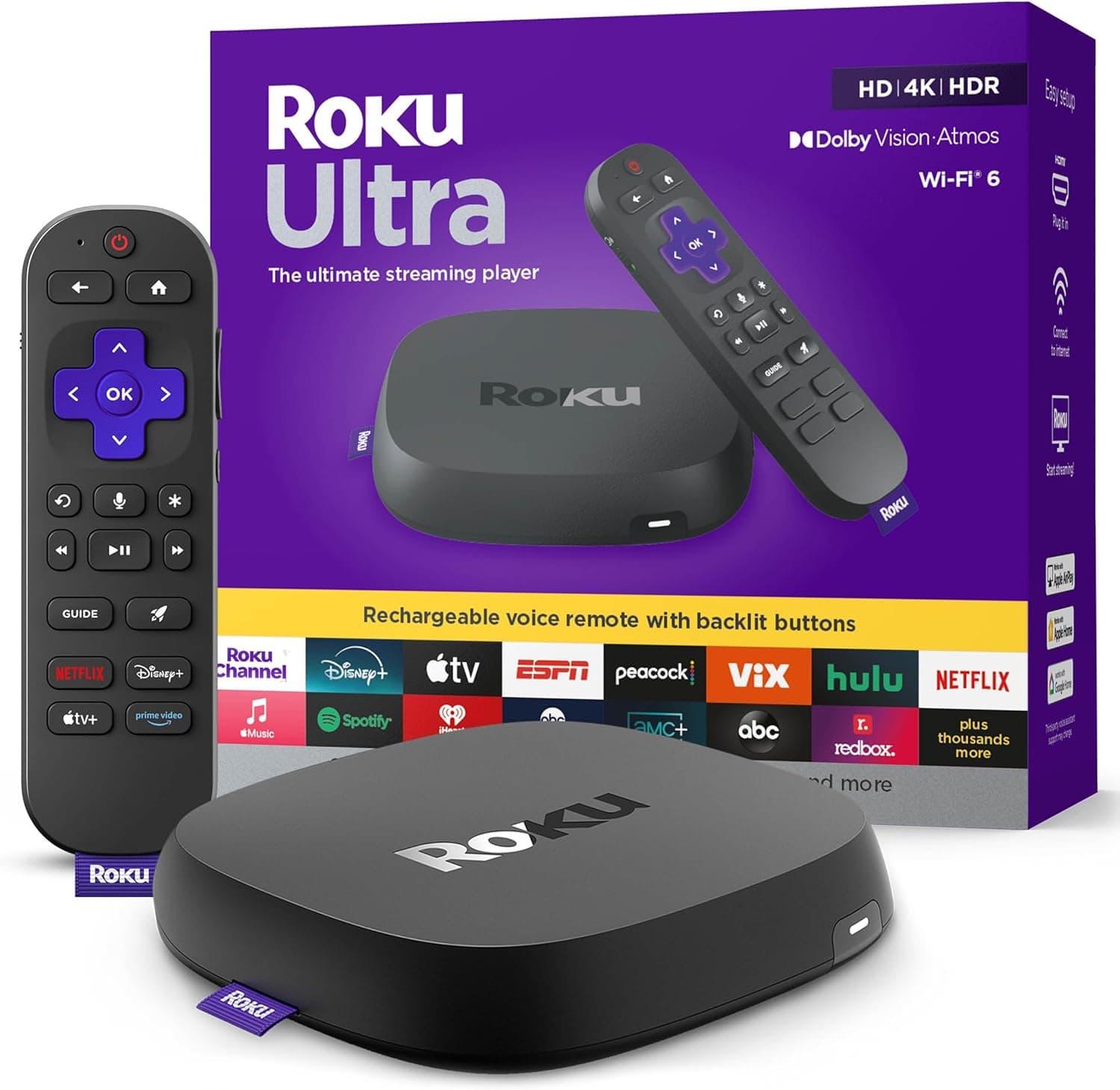
+ Wi-Fi 6 and Ethernet option keep high bitrate 4K streams steady
From our guide: Best Streaming Devices
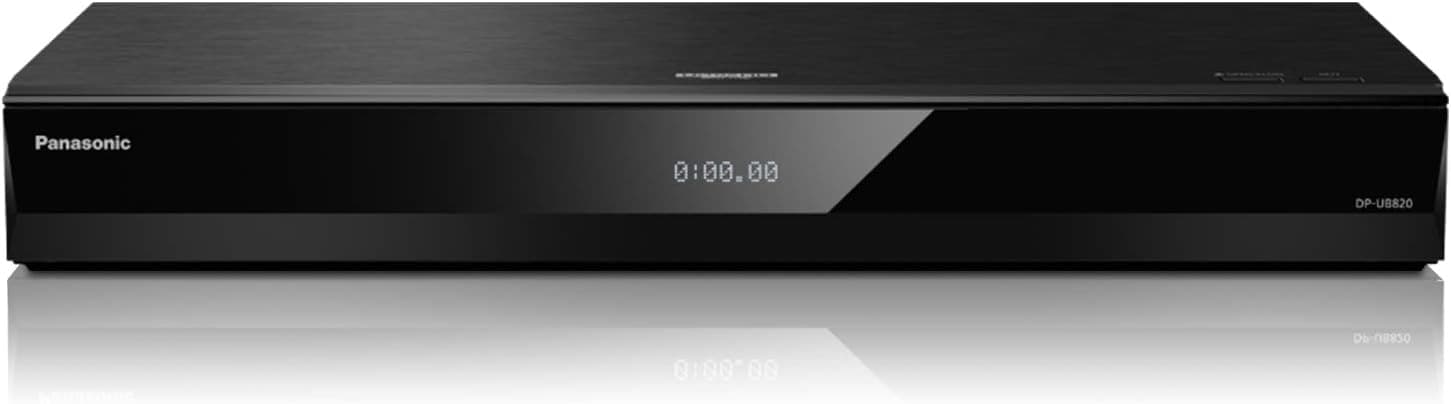
+ Supports both Dolby Vision and HDR10+ for every HDR disc type
From our guide: Best 4K Media Players
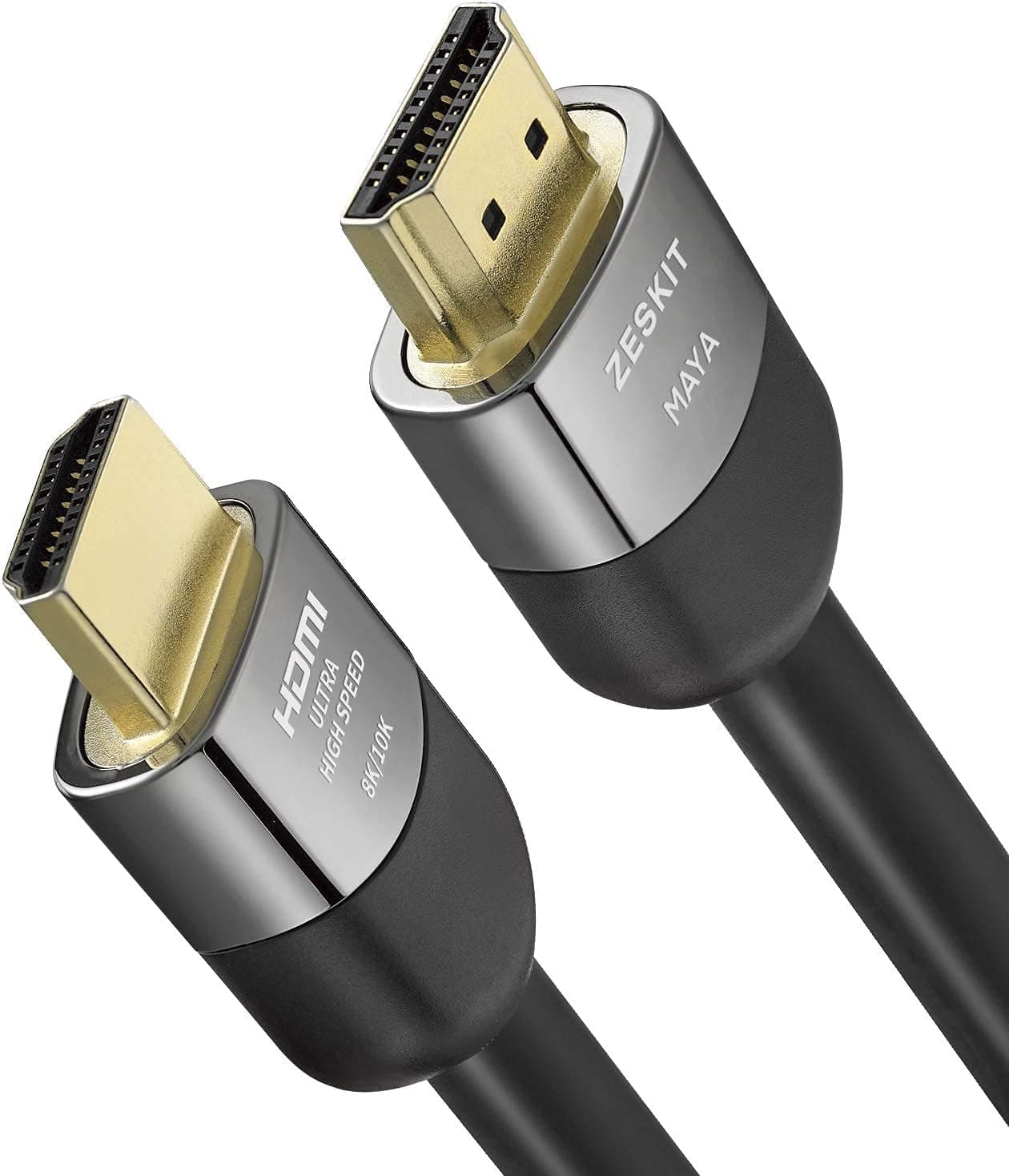
+ Certified 48Gbps supports 4K120Hz gaming on current consoles and PCs
From our guide: Best HDMI Cables
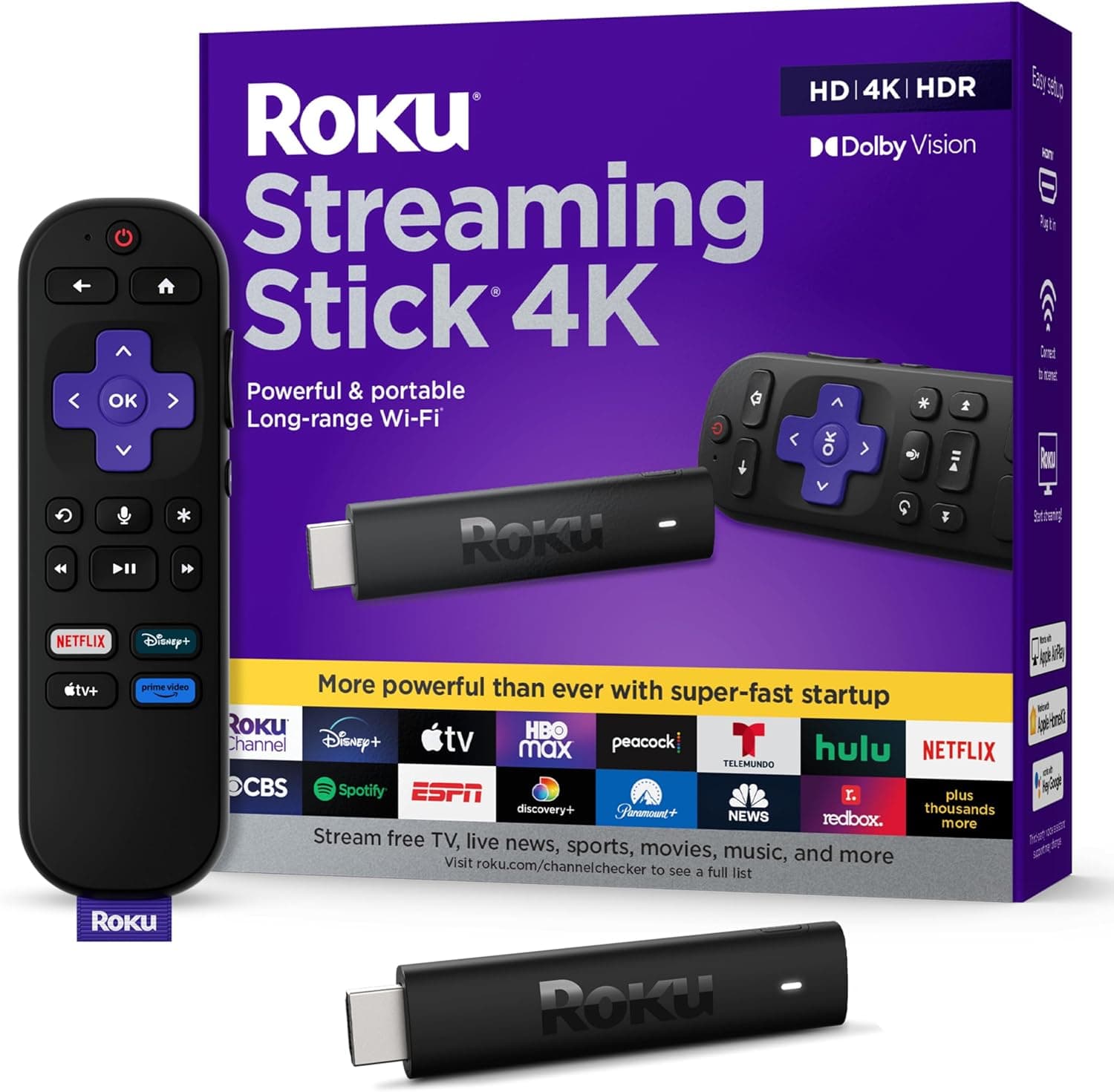
+ Dolby Vision and HDR10+ cover the main streaming HDR formats
From our guide: Best Streaming Devices
Check that your LG TV supports AirPlay
LG added AirPlay 2 to many of its webOS models from 2019, but not every model, so check before troubleshooting. On the TV, open the settings, go to the General section and look for Apple AirPlay and HomeKit settings. If the entry is missing, your TV probably has no AirPlay and you will need one of the alternatives later in this article.
Also confirm that the TV software is current. In the same settings area, look for the software update option and install anything pending, since AirPlay fixes arrive through updates.
Make sure AirPlay is switched on in that menu. If it was turned off, the TV will not show up in the iPhone list at all. You can find it again after any update.
Mirror your iPhone with AirPlay step by step
Connect the iPhone and the TV to the same Wi-Fi network. A mesh system with separate names for the 2.4 GHz and 5 GHz bands can cause trouble, so if possible put both on the same network name.
Swipe down from the top right corner of the screen, or up from the bottom on older iPhones with a home button, to open Control Center. Tap Screen Mirroring, choose your LG TV from the list, and type the four digit code shown on the TV if prompted. Your iPhone screen should appear within a few seconds.
To stop, open Control Center again, tap Screen Mirroring and choose Stop Mirroring. Rotating the phone to landscape will fill the TV for video, and many apps also have their own AirPlay icon that sends only the video instead of mirroring the whole screen, which keeps notifications off the TV.
Mirroring shows everything on the phone, including notifications, so turn on Do Not Disturb before a presentation or family movie night.
Fix an LG TV that does not show up or keeps disconnecting
Start with the basics. Restart the iPhone, restart the TV by unplugging it for a minute, and restart the router if several devices have trouble. Confirm both are on the same network and that neither is using a VPN, which can hide the TV from the phone.
If the TV appears but the picture stutters, the cause is usually Wi-Fi. Moving the router closer, using the 5 GHz band, or connecting the TV by Ethernet improves stability. Streaming video that stops while mirroring often points to a congested network.
On the iPhone, check that Local Network access is allowed for the app you are casting from, under privacy settings. Blocking it can stop the device list from loading.
Use a cable when you want zero lag
For presentations or gaming where delay matters, a wired connection removes the network from the picture. Apple sells a Lightning to HDMI adapter for iPhones with a Lightning port and USB-C to HDMI adapters work with iPhones that use USB-C. Plug the adapter into the phone, run an HDMI cable to a free TV input, and select that input.
Use a good HDMI cable that supports the resolution you need. Some video apps block mirroring over a cable for copy protection reasons, so a blank screen in a streaming app is expected behavior in that case.
Send the sound to a soundbar or receiver
When you mirror, the audio normally plays through whatever the TV uses for sound. If your TV is connected to a soundbar or receiver over HDMI ARC or eARC, the mirrored sound follows the same path, so you do not need to change anything on the phone. If the sound comes out of the TV speakers instead, check the TV sound output setting and select the external speaker or ARC option.
A slight delay between picture and sound is common with wireless mirroring, especially through a soundbar. Many LG TVs have an audio sync or lip-sync adjustment in the sound settings. Small changes of a few tens of milliseconds are usually enough to bring dialogue back in line with lips.
For music, you may prefer to skip mirroring completely and use the AirPlay button in the music app to send only the audio to the TV or to an AirPlay speaker. That uses less bandwidth and keeps the phone screen free for other things.
Add a streaming device if the TV has no AirPlay
If your LG TV is too old for AirPlay, a streaming stick or box gives it the feature for a modest price. Many current devices support AirPlay, and an Apple TV supports it natively. Plug the device into an HDMI port and mirror to it instead of to the TV itself.
This also brings faster apps and newer video formats to an older set. Our guide to streaming devices compares what each platform offers, and the 4K media players guide covers boxes aimed at higher quality picture and sound.
Frequently asked questions
Does mirroring work without Wi-Fi? Not with AirPlay, which needs both devices on a network. A wired adapter works without any Wi-Fi.
Is there an LG app I need to install? Not for AirPlay. It is built into supported models, so the iPhone needs only Control Center.
Why is the sound still coming from my phone? Open Control Center and check the audio output. Choose the TV or your soundbar as the output.
Why is the picture cropped or has black bars? Mirroring reproduces the phone aspect ratio. Rotate the phone to landscape, or use the AirPlay icon inside a video app so the video fills the screen.
Popular right now
- Best 4K Blu-ray PlayersBuying guide
- Best Soundbar Wall MountsBuying guide
- Best 4K ProjectorsBuying guide
- Best Dolby Atmos SpeakersBuying guide
- How to Stop a Subwoofer From Humming or BuzzingArticle
- Best In-Ceiling SpeakersBuying guide
Based on the last 28 days of search and visitor data.