How to Stream to Your TV From an iPhone: Every Method Explained
Published How we research
The easiest way to stream from an iPhone to a TV is AirPlay: connect both to the same Wi-Fi network, tap the AirPlay icon in a video app or Screen Mirroring in Control Center, and pick the TV. If your TV does not support AirPlay, a streaming box or a wired HDMI adapter does the same job. This guide covers each method, which one fits which TV, and what to check when the TV does not appear.
Products from this article
The highest-scoring picks from the buying guides this article links to. Scores are our editorial assessment, not customer ratings.
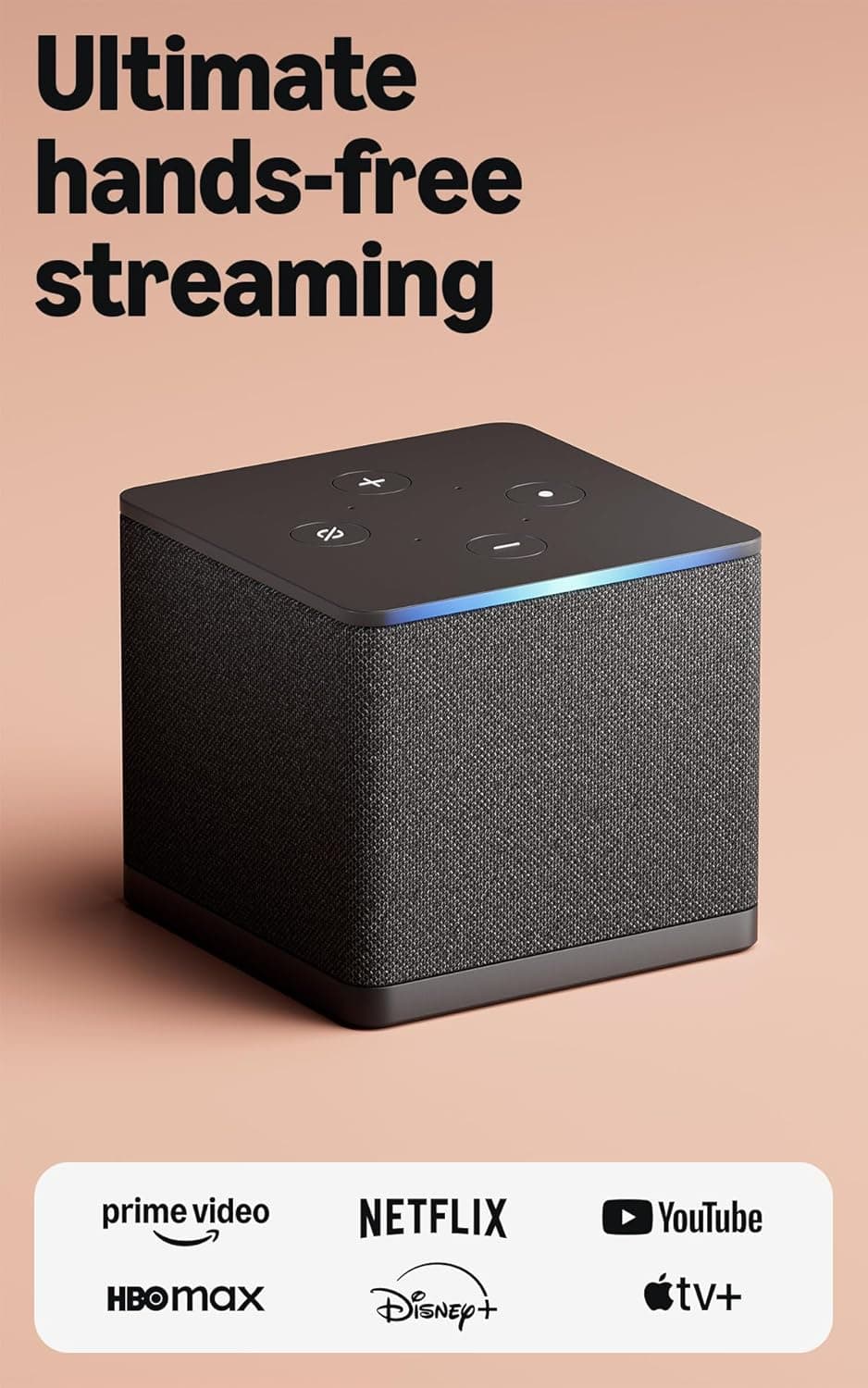
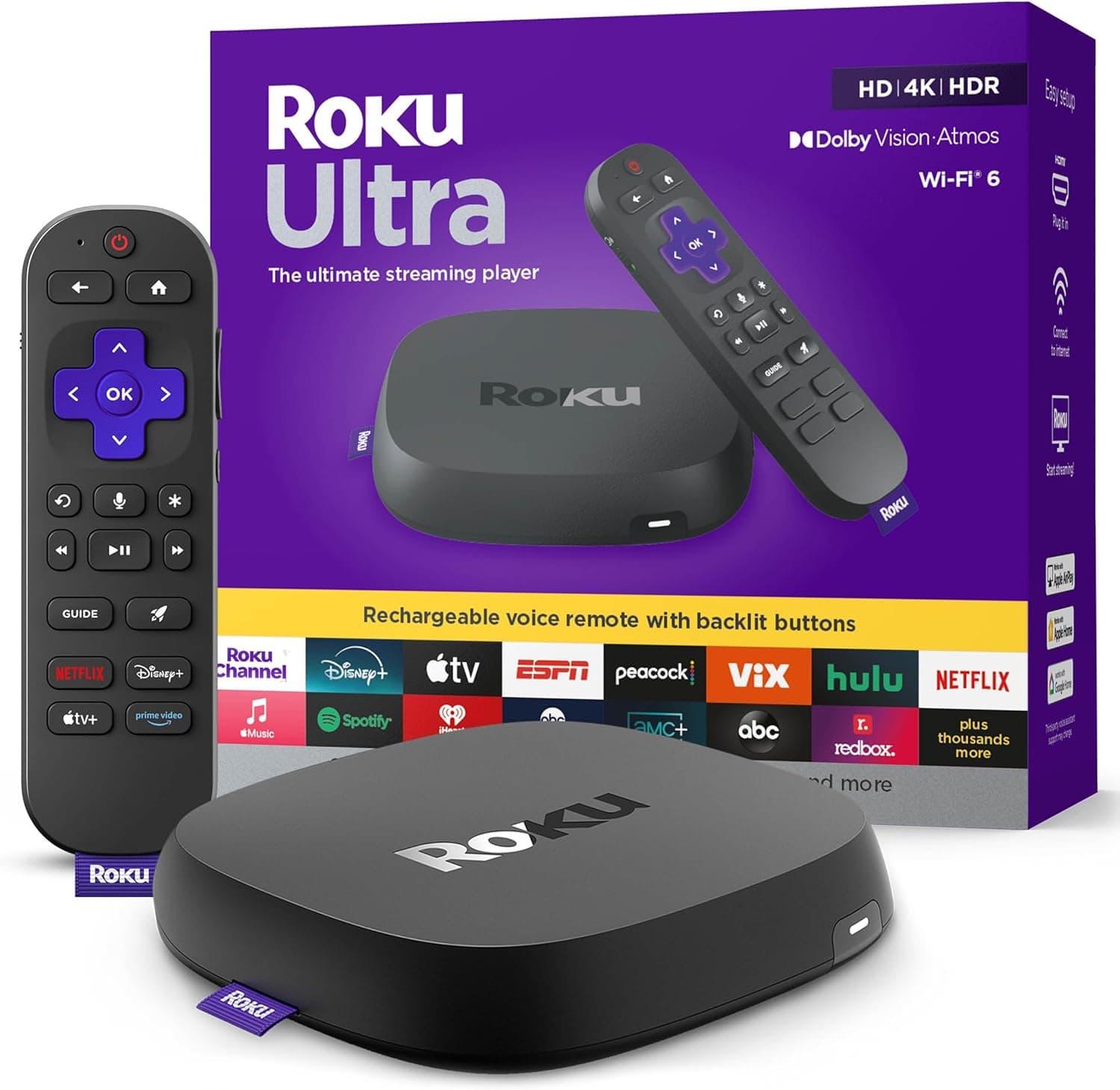
+ Wi-Fi 6 and Ethernet option keep high bitrate 4K streams steady
From our guide: Best Streaming Boxes
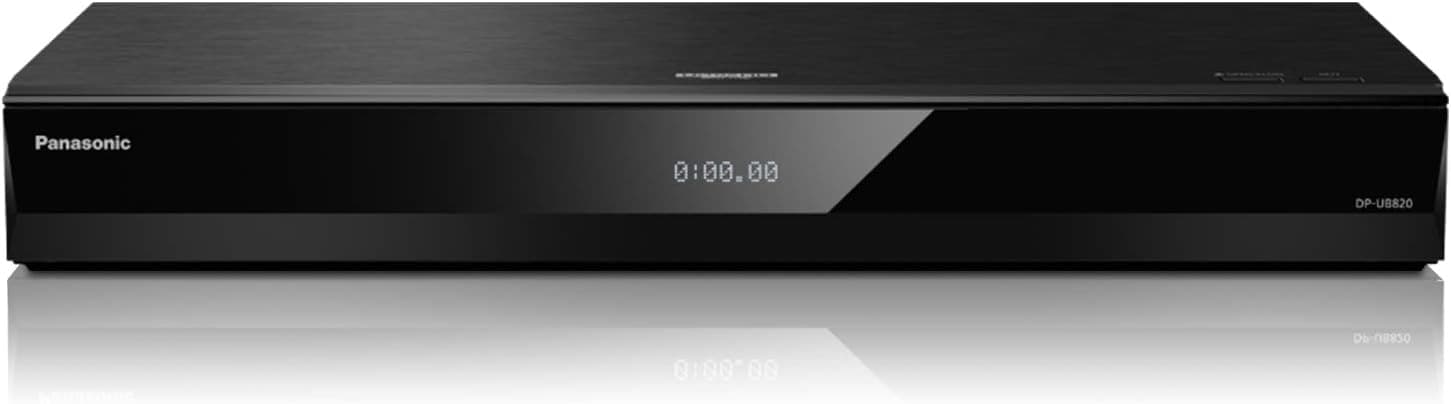
+ Supports both Dolby Vision and HDR10+ for every HDR disc type
From our guide: Best 4K Media Players
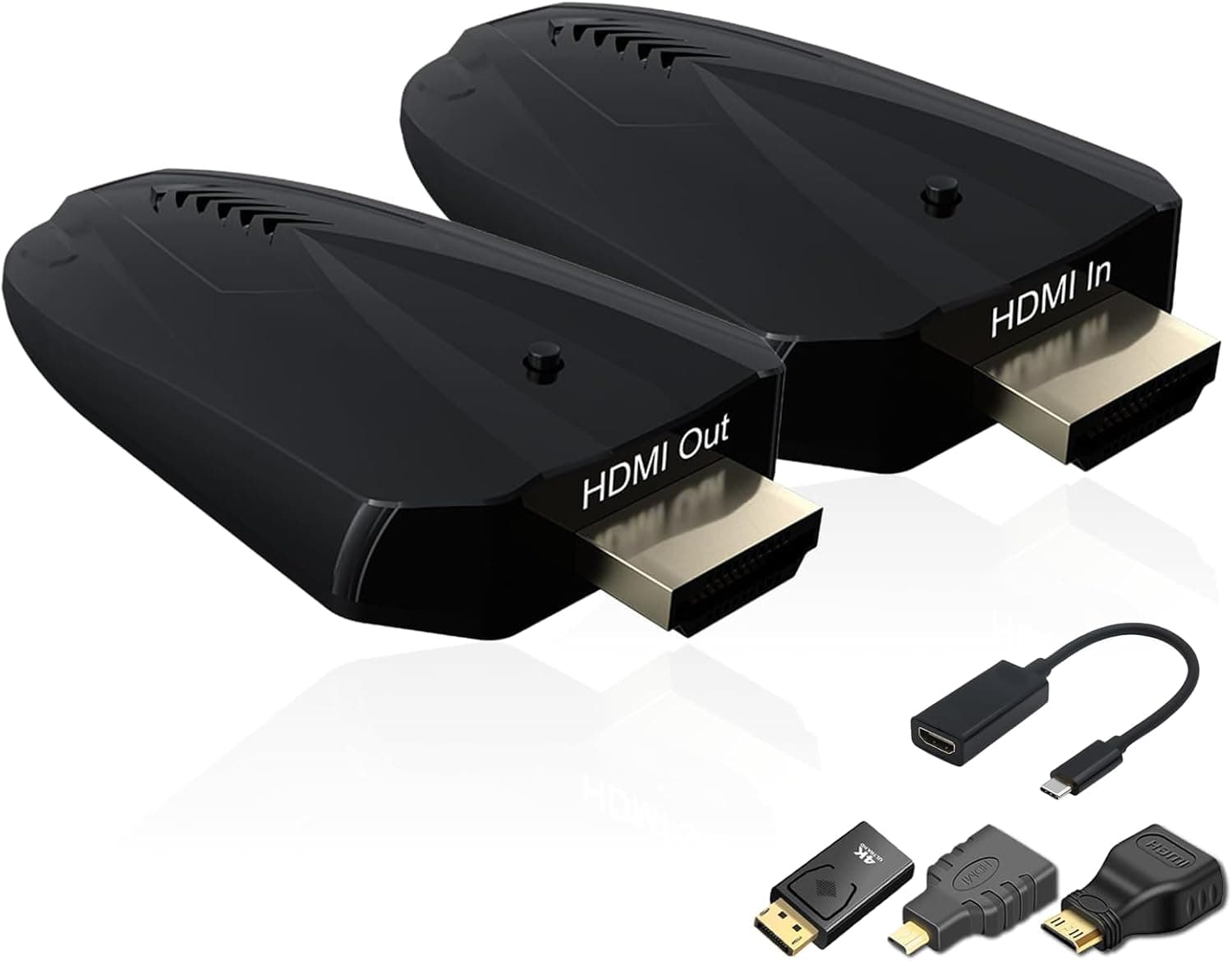
+ Removes long HDMI runs to ceiling projectors
From our guide: Best Wireless HDMI Transmitters
+ Wi-Fi 6 and all major HDR formats make it a future-proof box
From our guide: Best Streaming Boxes
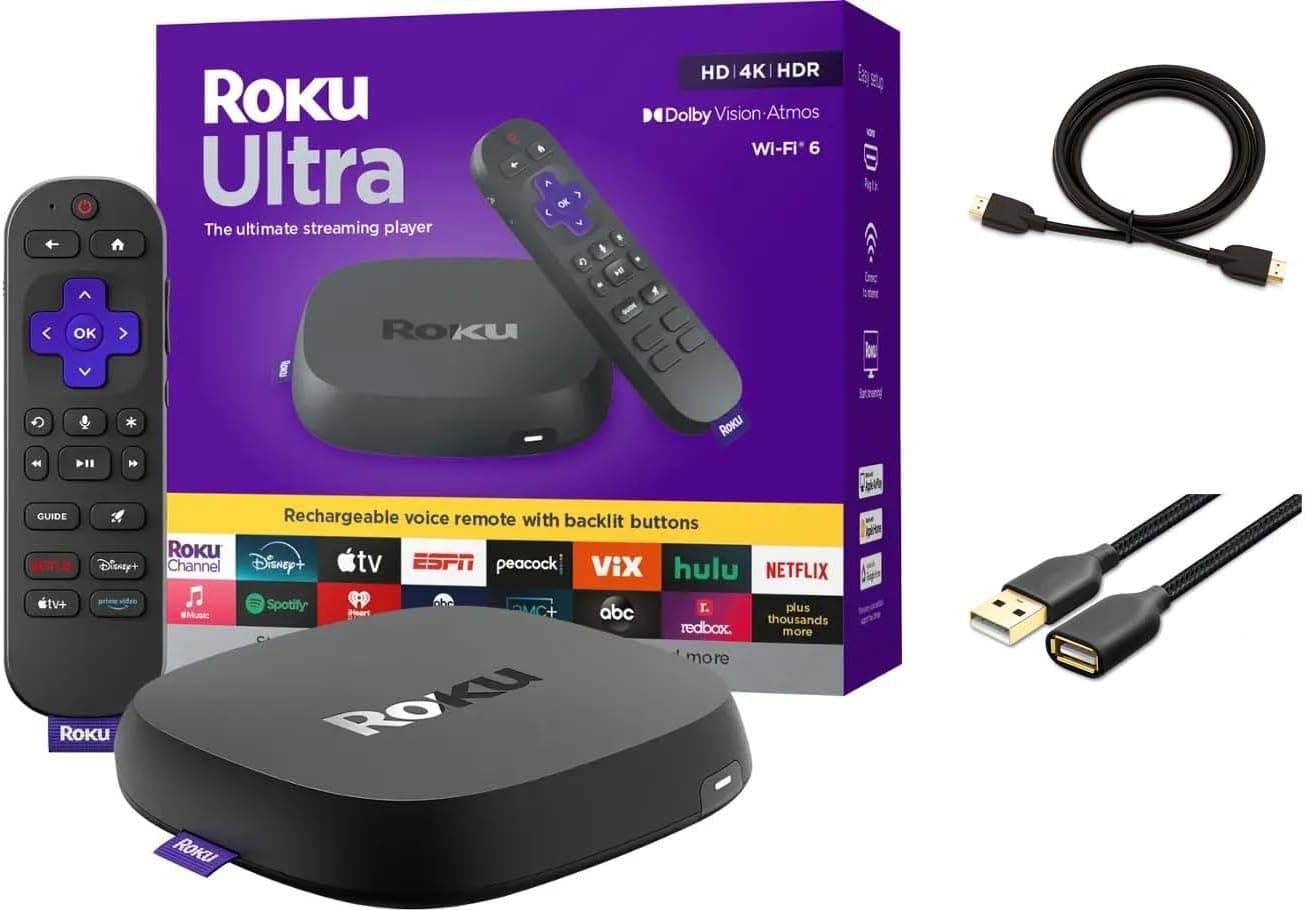

Pick the method that matches your TV
There are four practical ways to get an iPhone onto a TV. AirPlay is wireless and built into Apple TV boxes and many newer smart TVs and streaming players. A Cast button inside an app works with Chromecast built-in devices and some smart TVs. A streaming box such as a Roku adds one of these features to an older TV. A wired adapter skips the network entirely and works with any TV that has an HDMI port.
A quick rule: if your TV was made in the last several years and is from a major brand, try AirPlay first. If it was not, or if the picture must have no delay, go straight to a cable. The sections below walk through each in that order.
Stream with AirPlay step by step
Connect the iPhone and the TV or streaming player to the same Wi-Fi network. Many recent TVs from Samsung, LG, Sony and Vizio support AirPlay 2, and so do Apple TV boxes and some Roku players. On the TV, make sure AirPlay is turned on in its settings, since it is sometimes off by default.
To send a single video, open the app, start playback and tap the AirPlay icon, which looks like a screen with a triangle at the bottom. Choose your TV, enter the code if one appears, and the video plays on the TV while the phone stays free for other things. To send music, open Control Center, press the audio card in the top right and choose the TV or a speaker from the list.
To show everything on the phone, open Control Center, tap Screen Mirroring and choose the TV. This is the right choice for photos, web pages and apps without an AirPlay icon. Turn on Do Not Disturb first, because notifications will appear on the big screen.
Use a streaming box when the TV has no AirPlay
If your TV is older or its AirPlay entry is missing from the settings, plugging in a streaming player is the cheapest fix. Apple TV supports AirPlay natively, and many Roku models list AirPlay support too. Check the exact model on the manufacturer page before buying, because support varies between generations.
A streaming box also gives you the TV's own apps, so you can start a show from the box and use the phone only when you want to share something. Connect the box to a free HDMI port, join it to your Wi-Fi, and it shows up in the AirPlay list on the iPhone like any other device. If the box can use Ethernet, a wired connection makes long 4K streams more stable.
Cast from apps with a Chromecast style button
Some iPhone apps, including YouTube, show a Cast icon instead of or next to the AirPlay icon. Tapping it lists devices with Chromecast built-in, such as Google TV players and a number of smart TVs. The phone only tells the TV what to play and the TV streams the video itself, so the phone battery lasts longer and you can lock the screen.
Casting needs the phone and the device on the same network, and the iPhone app must be allowed to find devices on your local network. If the list is empty, open the iPhone settings, go to Privacy and Security, open Local Network and switch the app on. App support for casting changes over time, so if the icon is missing, AirPlay or a cable is the reliable fallback.
Connect with a cable for zero delay
A wired connection suits presentations, games and any room with weak Wi-Fi. iPhones with a Lightning port use a Lightning to HDMI adapter, and iPhones with a USB-C port use a USB-C to HDMI adapter or a USB-C multiport adapter. Plug the adapter into the phone, run an HDMI cable to the TV, and select that HDMI input on the TV.
Use an HDMI cable rated for the resolution you want. A standard High Speed cable handles 4K at 30 or 60 Hz for most uses, and longer runs benefit from a well made cable. Some streaming apps block video over a cable for copy protection, so a black screen in one app while others work is normal. If the adapter has a charging port, connect power so a long movie does not drain the phone.
For a projector far from your seat, a wireless HDMI kit can replace the long cable run, although it adds its own setup and a small delay.
Fix an iPhone that cannot find the TV
Start with the network. Both devices must be on the same Wi-Fi network, and a guest network or a second router in the house often separates them. Turn off any VPN on the iPhone, restart the phone, then unplug the TV or streaming box for a minute. Those steps solve most missing device problems.
If the picture stutters, move closer to the router, use the 5 GHz band, or connect the TV or box with an Ethernet cable. Routers with client isolation turned on block AirPlay completely, so look for that option in the router settings. Install pending software updates on both the iPhone and the TV, since AirPlay fixes arrive through updates.
If sound comes out of the wrong place, check the AirPlay audio choice in Control Center. To send the sound on to a soundbar or receiver, use the TV's eARC or optical output as usual.
Frequently asked questions
Can I stream from an iPhone to a TV without Wi-Fi? Yes, with a wired HDMI adapter. AirPlay and casting need a shared network, although an Apple TV and iPhone can sometimes connect directly for AirPlay when no router is available.
Does streaming from an iPhone work with any TV? Any TV with an HDMI port works with a cable. Wireless methods need AirPlay support or a streaming device attached to the TV.
Why is the video not full screen on the TV? Mirroring copies the phone screen, so a portrait app appears as a narrow strip. Rotate the phone to landscape, or use the AirPlay icon inside the video app so the TV plays the video at full size.
Does streaming from my iPhone use mobile data? Not on the TV side, since the video travels over your home Wi-Fi. The phone still needs a connection to fetch the video from the app, which uses Wi-Fi when you are at home.
Popular right now
- Best 4K Blu-ray PlayersBuying guide
- Best Soundbar Wall MountsBuying guide
- Best 4K ProjectorsBuying guide
- Best Dolby Atmos SpeakersBuying guide
- How to Stop a Subwoofer From Humming or BuzzingArticle
- Best In-Ceiling SpeakersBuying guide
Based on the last 28 days of search and visitor data.